

<!DOCTYPE html> <!-- declaration that defines this document to be an HTML5 document -->
<html> <!-- root element of an HTML page, all other elements live inside it -->
<head> <!-- contains metadata about the HTML document, such as its title, character set, and links to stylesheets/scripts -->
    <meta charset="UTF-8"> <!-- empty element that provides machine-readable information (metadata) about the document, like the character set (`charset="UTF-8"`)-->
    <title>Five Images</title> <!-- sets the title that appears in the browser's title bar or tab-->
    <link rel="stylesheet" href="style.css"> <!-- this attribute specifies the location (URL or path) of the external stylesheet file. In this case, the file named style.css is expected to be in the same folder as the HTML file. -->
</head>
<body> <!-- contains all the visible content of the page, such as text, images, links, and headings-->
    <div style="text-align: center;"> <!-- to horizontally center content, such as text, images, or other block elements, within its parent container -->
    <h1>Exercise 1: Five Images</h1> <!-- defines the most important heading on the page (Heading Level 1)-->
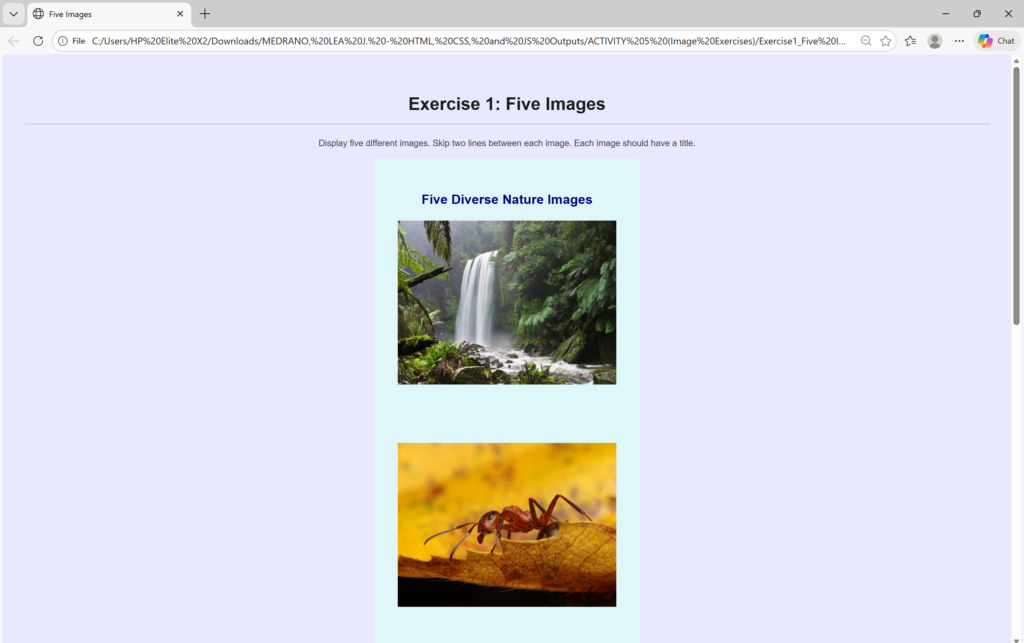
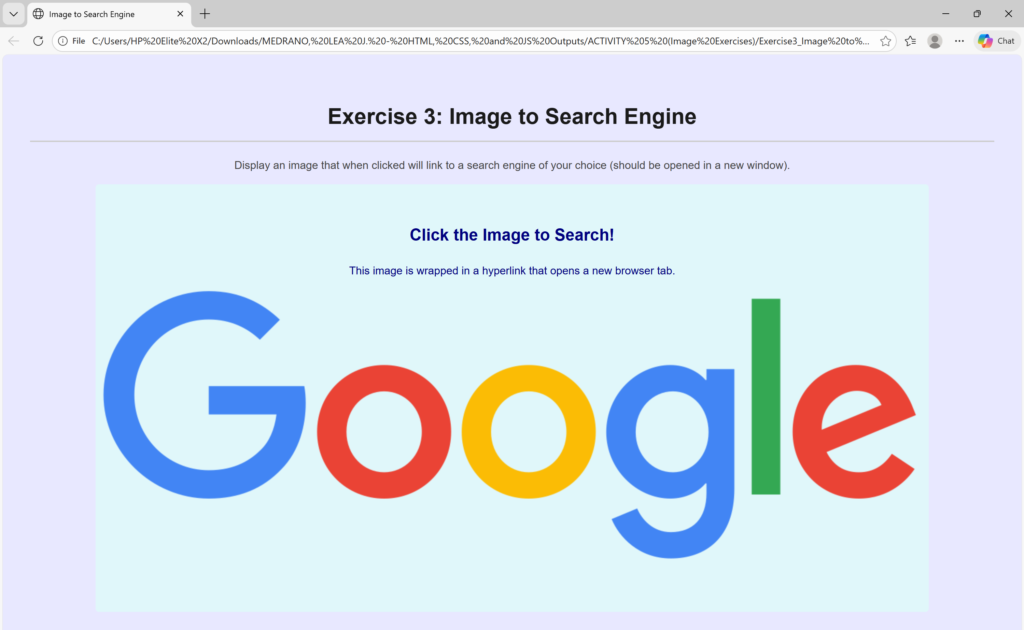
        <p> Display five different images. Skip two lines between each image. Each image should have a title. </p> <!-- defines a paragraph of text -->

<div class="styled-text"><br>
    <h2>Five Diverse Nature Images</h2>

        <img src="https://upload.wikimedia.org/wikipedia/commons/3/36/Hopetoun_falls.jpg"
                width="400"
                height="300"
                alt="Rainforest Waterfall"
                title="Title: Rainforest Waterfall" >
                <!--title attribute provides supplemental information about the element-->
                <!--alt attribute provides descriptive text for the image, it is mandatory for accessibility and highly recommended for good web practices-->
            <br><br>

        <img src="https://upload.wikimedia.org/wikipedia/commons/thumb/3/3c/Formica_polyctena_2.jpg/2560px-Formica_polyctena_2.jpg"
                width="400"
                height="300"
                alt="Ant"
                title="Title: Macro Photograph of Ant" >
                <!--title attribute provides supplemental information about the element-->
                <!--alt attribute provides descriptive text for the image, it is mandatory for accessibility and highly recommended for good web practices-->
            <br><br>

        <img src="https://upload.wikimedia.org/wikipedia/commons/c/c8/Altja_j%C3%B5gi_Lahemaal.jpg"
                width="400"
                height="300"
                alt="Lahemaa National Park"
                title="Title: Lahemaa National Park in Estonia" >
                <!--title attribute provides supplemental information about the element-->
                <!--alt attribute provides descriptive text for the image, it is mandatory for accessibility and highly recommended for good web practices-->
            <br><br>

        <img src="https://upload.wikimedia.org/wikipedia/commons/thumb/4/41/Colibr%C3%AD_Cola_de_Oro_%28Golden-tailed_Sapphire_Hummingbird%29_Bigger_File.jpg/500px-Colibr%C3%AD_Cola_de_Oro_%28Golden-tailed_Sapphire_Hummingbird%29_Bigger_File.jpg"
                width="400"
                height="300"
                alt="Humming Bird"
                title="Title: Hummingbird photographed with focal length of 300mm" >
                <!--title attribute provides supplemental information about the element-->
                <!--alt attribute provides descriptive text for the image, it is mandatory for accessibility and highly recommended for good web practices-->
            <br><br>

        <img src="https://upload.wikimedia.org/wikipedia/commons/thumb/d/d3/Aurora_borealis_over_Eielson_Air_Force_Base%2C_Alaska.jpg/2560px-Aurora_borealis_over_Eielson_Air_Force_Base%2C_Alaska.jpg"
                width="400"
                height="300"
                alt="Aurora Borealis"
                title="Title: The Captivating Aurora Borealis" >
                <!--title attribute provides supplemental information about the element-->
                <!--alt attribute provides descriptive text for the image, it is mandatory for accessibility and highly recommended for good web practices-->
            <br><br>

</div>

    <script src="script.js"></script>
    </div>
</body>
</html>
/*
 * style.css
 * Styles for the basic HTML exercises.
 */

/* Global Reset/Box-sizing for consistency */
*, *::before, *::after {
    box-sizing: border-box;
}

body {
    font-family: Arial, sans-serif;
    line-height: 1.6;
    margin: 20px;
    padding: 20px;
    background-color: #e8e8ff; /* Light lavender background */
    color: #444;
}

/* --- Headings Styling --- */
h1 {
    color: #1a1a1a;
    border-bottom: 2px solid #ccc;
    padding-bottom: 10px;
    margin-top: 25px;
    /* Centering used for the Search Engine and Address exercises */
    text-align: center;
}

/* Paragraph Styling */
p {
    margin-bottom: 15px;
}

/* Specific styling for .styled-text */
.styled-text {
    color: navy;
    background-color: #e0f7fa; /* Light cyan background */
    padding: 10px;
    border-radius: 5px;
    display: inline-block;
}

/* --- STYLES FOR EMBEDDED CONTENT (IFRAMES) --- */

/* Ensures the iframe has a consistent border and margins */
iframe {
    /* Uses a fixed aspect ratio for visual consistency */
    display: block;
    width: 400px;
    height: 300px;
    border: 3px solid #007bff; /* Blue border to match previous image style */
    /* Removed margin from here, handled by .iframe-container */
}

/* --- STYLES FOR JAVASCRIPT TITLE DISPLAY --- */

/* Style for the dynamically added title */
.image-title-display {
    font-weight: bold;
    font-size: 1.1em;
    color: navy; /* A nice blue color */
    padding: 5px 0 15px 0;

    /* Make the transition smooth */
    transition: opacity 0.3s ease-in-out;

    /* Initial state set by JavaScript */
    opacity: 0;
}

/* Optional: Style the image on hover for a visual cue */
img {
    transition: transform 0.3s ease-in-out;
}

img:hover {
    transform: scale(1.01); /* Subtle zoom */
    box-shadow: 0 4px 8px rgba(0, 0, 0, 0.2);
}

/* --- STYLES FOR JUMP LINK EXERCISE --- */

/* Ensures the content blocks are large enough to require scrolling */
.content-block {
    margin-top: 50px;
    padding: 20px;
    border: 1px solid #ccc;
    height: 80vh; /* Set height to 80% of viewport height */
}

/* Styles the target area at the bottom of the page */
.bottom-marker {
    padding: 20px;
    font-size: 1.5em;
    text-align: center;
    background-color: #fffdda;
    margin-top: 50px;
    margin-bottom: 50px;
}


html {
    /* Applies a smooth animation when scrolling to anchor links */
    scroll-behavior: smooth;
}
/**
 * script.js
 * Enhances image viewing by creating a persistent title display that appears
 * below the image when the mouse hovers over it.
 */

document.addEventListener('DOMContentLoaded', function() {
    // 1. Select all the image elements you want to add this effect to.
    //    We use the tag name 'img' to select all images on the page.
    const images = document.querySelectorAll('img');

    images.forEach(image => {
        // 2. Get the title text from the 'title' attribute.
        //    We use getAttribute() to ensure we retrieve the explicit title set in HTML.
        const titleText = image.getAttribute('title');

        // Check if there is a title to display and if the element hasn't been processed yet
        if (titleText) {

            // 3. Create a new <div> element to hold and display the title.
            const titleDisplay = document.createElement('div');

            // Assign a class for CSS styling (create this class in style.css)
            titleDisplay.classList.add('image-title-display');

            // Clean up the text by removing the "Title: " prefix
            titleDisplay.textContent = titleText.replace('Title: ', '');

            // Start the element hidden
            titleDisplay.style.visibility = 'hidden';

            // 4. Insert the new title element directly after the image element.
            //    This places the title right below the image.
            image.parentNode.insertBefore(titleDisplay, image.nextSibling);


            // --- Event Listeners for Hover Effect ---

            // MOUSE ENTER: Show the title display
            image.addEventListener('mouseenter', function() {
                titleDisplay.style.visibility = 'visible';
                titleDisplay.style.opacity = '1'; // Use opacity for a fade-in effect (needs CSS transition)
            });

            // MOUSE LEAVE: Hide the title display
            image.addEventListener('mouseleave', function() {
                titleDisplay.style.visibility = 'hidden';
                titleDisplay.style.opacity = '0'; // Use opacity for a fade-out effect (needs CSS transition)
            });
        }
    });

    console.log("Script.js loaded. Custom title display attached to images.");
});
<!DOCTYPE html> <!-- declaration that defines this document to be an HTML5 document -->
<html> <!-- root element of an HTML page, all other elements live inside it -->
<head> <!-- contains metadata about the HTML document, such as its title, character set, and links to stylesheets/scripts -->
    <meta charset="UTF-8"> <!-- empty element that provides machine-readable information (metadata) about the document, like the character set (`charset="UTF-8"`)-->
    <title>Image with Border</title> <!-- sets the title that appears in the browser's title bar or tab-->
    <link rel="stylesheet" href="style.css"> <!-- this attribute specifies the location (URL or path) of the external stylesheet file. In this case, the file named style.css is expected to be in the same folder as the HTML file. -->
</head>
<body> <!-- contains all the visible content of the page, such as text, images, links, and headings-->
    <div style="text-align: center;"> <!-- to horizontally center content, such as text, images, or other block elements, within its parent container -->
    <h1>Exercise 2: Image with Border</h1> <!-- defines the most important heading on the page (Heading Level 1)-->
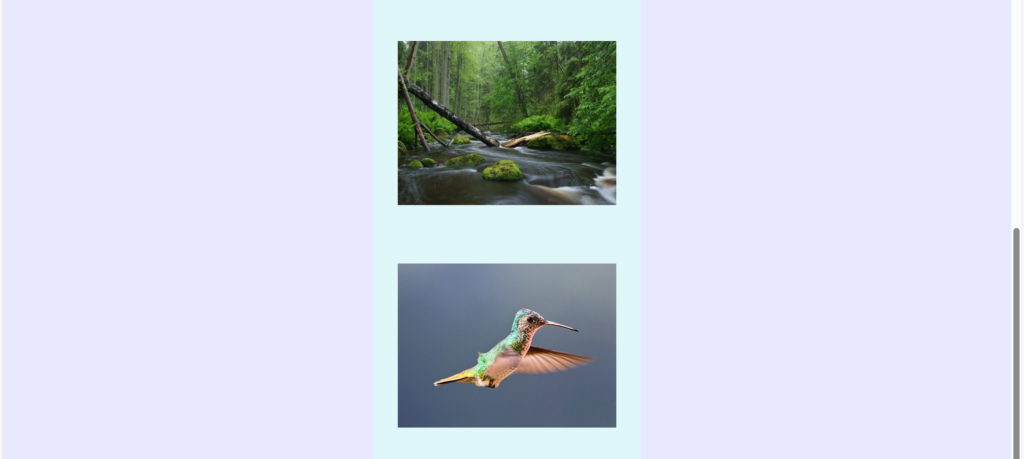
        <p> Display an image that has a border of size 2, a width of 200, and a height of 200. </p> <!-- defines a paragraph of text -->

<div class="styled-text"><br>
    <h2>Image with Specific Styling</h2>
    <p>Below is an image with a 2px border, 200px width, and 200px height.</p>
<div class="iframe-container">
    <!-- src attribute is the most crucial attribute for the img tag, it is mandatory for an image to appear-->
    <img src="https://upload.wikimedia.org/wikipedia/commons/0/06/Startrails_above_Gunung_Bromo_-_Indonesia.jpg"
                width="200"
                height="200"
                alt="Night Sky"
                title="Title: The Beautiful Night Sky"
                class="styled-image">
                <!--title attribute provides supplemental information about the element-->
                <!--alt attribute provides descriptive text for the image, it is mandatory for accessibility and highly recommended for good web practices-->
                <!--class attribute is a standard HTML attribute used for styling and scripting elements-->
    </div>
</div>

    <script src="script.js"></script>
    </div>
</body>
</html>
/*
 * style.css
 * Styles for the basic HTML exercises.
 */

/* Global Reset/Box-sizing for consistency */
*, *::before, *::after {
    box-sizing: border-box;
}

body {
    font-family: Arial, sans-serif;
    line-height: 1.6;
    margin: 20px;
    padding: 20px;
    background-color: #e8e8ff; /* Light lavender background */
    color: #444;
}

/* --- Headings Styling --- */
h1 {
    color: #1a1a1a;
    border-bottom: 2px solid #ccc;
    padding-bottom: 10px;
    margin-top: 25px;
    /* Centering used for the Search Engine and Address exercises */
    text-align: center;
}

/* Paragraph Styling */
p {
    margin-bottom: 15px;
}

/* Specific styling for .styled-text */
.styled-text {
    color: navy;
    background-color: #e0f7fa; /* Light cyan background */
    padding: 10px;
    border-radius: 5px;
    display: inline-block;
}

/* --- STYLES FOR EMBEDDED CONTENT (IFRAMES) --- */

/* Ensures the iframe has a consistent border and margins */
iframe {
    /* Uses a fixed aspect ratio for visual consistency */
    display: block;
    width: 400px;
    height: 300px;
    border: 3px solid #007bff; /* Blue border to match previous image style */
    /* Removed margin from here, handled by .iframe-container */
}

/* --- STYLES FOR JAVASCRIPT TITLE DISPLAY --- */

/* Style for the dynamically added title */
.image-title-display {
    font-weight: bold;
    font-size: 1.1em;
    color: navy; /* A nice blue color */
    padding: 5px 0 15px 0;

    /* Make the transition smooth */
    transition: opacity 0.3s ease-in-out;

    /* Initial state set by JavaScript */
    opacity: 0;
}

/* Optional: Style the image on hover for a visual cue */
img {
    transition: transform 0.3s ease-in-out;
}

img:hover {
    transform: scale(1.01); /* Subtle zoom */
    box-shadow: 0 4px 8px rgba(0, 0, 0, 0.2);
}

/* --- STYLES FOR JUMP LINK EXERCISE --- */

/* Ensures the content blocks are large enough to require scrolling */
.content-block {
    margin-top: 50px;
    padding: 20px;
    border: 1px solid #ccc;
    height: 80vh; /* Set height to 80% of viewport height */
}

/* Styles the target area at the bottom of the page */
.bottom-marker {
    padding: 20px;
    font-size: 1.5em;
    text-align: center;
    background-color: #fffdda;
    margin-top: 50px;
    margin-bottom: 50px;
}


html {
    /* Applies a smooth animation when scrolling to anchor links */
    scroll-behavior: smooth;
}
/**
 * script.js
 * Enhances image viewing by creating a persistent title display that appears
 * below the image when the mouse hovers over it.
 */

document.addEventListener('DOMContentLoaded', function() {
    // 1. Select all the image elements you want to add this effect to.
    //    We use the tag name 'img' to select all images on the page.
    const images = document.querySelectorAll('img');

    images.forEach(image => {
        // 2. Get the title text from the 'title' attribute.
        //    We use getAttribute() to ensure we retrieve the explicit title set in HTML.
        const titleText = image.getAttribute('title');

        // Check if there is a title to display and if the element hasn't been processed yet
        if (titleText) {

            // 3. Create a new <div> element to hold and display the title.
            const titleDisplay = document.createElement('div');

            // Assign a class for CSS styling (create this class in style.css)
            titleDisplay.classList.add('image-title-display');

            // Clean up the text by removing the "Title: " prefix
            titleDisplay.textContent = titleText.replace('Title: ', '');

            // Start the element hidden
            titleDisplay.style.visibility = 'hidden';

            // 4. Insert the new title element directly after the image element.
            //    This places the title right below the image.
            image.parentNode.insertBefore(titleDisplay, image.nextSibling);


            // --- Event Listeners for Hover Effect ---

            // MOUSE ENTER: Show the title display
            image.addEventListener('mouseenter', function() {
                titleDisplay.style.visibility = 'visible';
                titleDisplay.style.opacity = '1'; // Use opacity for a fade-in effect (needs CSS transition)
            });

            // MOUSE LEAVE: Hide the title display
            image.addEventListener('mouseleave', function() {
                titleDisplay.style.visibility = 'hidden';
                titleDisplay.style.opacity = '0'; // Use opacity for a fade-out effect (needs CSS transition)
            });
        }
    });

    console.log("Script.js loaded. Custom title display attached to images.");
});
<!DOCTYPE html> <!-- declaration that defines this document to be an HTML5 document -->
<html> <!-- root element of an HTML page, all other elements live inside it -->
<head> <!-- contains metadata about the HTML document, such as its title, character set, and links to stylesheets/scripts -->
    <meta charset="UTF-8"> <!-- empty element that provides machine-readable information (metadata) about the document, like the character set (`charset="UTF-8"`)-->
    <title>Image to Search Engine</title> <!-- sets the title that appears in the browser's title bar or tab-->
    <link rel="stylesheet" href="style.css"> <!-- this attribute specifies the location (URL or path) of the external stylesheet file. In this case, the file named style.css is expected to be in the same folder as the HTML file. -->
</head>
<body> <!-- contains all the visible content of the page, such as text, images, links, and headings-->
    <div style="text-align: center;"> <!-- to horizontally center content, such as text, images, or other block elements, within its parent container -->
    <h1>Exercise 3: Image to Search Engine</h1> <!-- defines the most important heading on the page (Heading Level 1)-->
        <p> Display an image that when clicked will link to a search engine of your choice (should be opened in a new window). </p> <!-- defines a paragraph of text -->

<div class="styled-text"><br>
    <h2>Click the Image to Search!</h2>
    <p>This image is wrapped in a hyperlink that opens a new browser tab.</p>

    <a href="https://www.google.com" target="_blank"> <!-- defines the destination of the link. It specifies the URL or path to which the user will be taken when they click the content inside the <a> tags-->
        <!-- src attribute is the most crucial attribute for the img tag, it is mandatory for an image to appear-->
        <img src="https://upload.wikimedia.org/wikipedia/commons/thumb/2/2f/Google_2015_logo.svg/1200px-Google_2015_logo.svg.png"
             title="Click to go to Google Search"
             alt="Google Logo"
             class="link-image">
             <!--title attribute provides supplemental information about the element-->
             <!--alt attribute provides descriptive text for the image, it is mandatory for accessibility and highly recommended for good web practices-->
             <!--class attribute is a standard HTML attribute used for styling and scripting elements-->
    </a>
    </div>
</div>

    <script src="script.js"></script>
    </div>
</body>
</html>
/*
 * style.css
 * Styles for the basic HTML exercises.
 */

/* Global Reset/Box-sizing for consistency */
*, *::before, *::after {
    box-sizing: border-box;
}

body {
    font-family: Arial, sans-serif;
    line-height: 1.6;
    margin: 20px;
    padding: 20px;
    background-color: #e8e8ff; /* Light lavender background */
    color: #444;
}

/* --- Headings Styling --- */
h1 {
    color: #1a1a1a;
    border-bottom: 2px solid #ccc;
    padding-bottom: 10px;
    margin-top: 25px;
    /* Centering used for the Search Engine and Address exercises */
    text-align: center;
}

/* Paragraph Styling */
p {
    margin-bottom: 15px;
}

/* Specific styling for .styled-text */
.styled-text {
    color: navy;
    background-color: #e0f7fa; /* Light cyan background */
    padding: 10px;
    border-radius: 5px;
    display: inline-block;
}

/* --- STYLES FOR EMBEDDED CONTENT (IFRAMES) --- */

/* Ensures the iframe has a consistent border and margins */
iframe {
    /* Uses a fixed aspect ratio for visual consistency */
    display: block;
    width: 400px;
    height: 300px;
    border: 3px solid #007bff; /* Blue border to match previous image style */
    /* Removed margin from here, handled by .iframe-container */
}

/* --- STYLES FOR JAVASCRIPT TITLE DISPLAY --- */

/* Style for the dynamically added title */
.image-title-display {
    font-weight: bold;
    font-size: 1.1em;
    color: navy; /* A nice blue color */
    padding: 5px 0 15px 0;

    /* Make the transition smooth */
    transition: opacity 0.3s ease-in-out;

    /* Initial state set by JavaScript */
    opacity: 0;
}

/* Optional: Style the image on hover for a visual cue */
img {
    transition: transform 0.3s ease-in-out;
}

img:hover {
    transform: scale(1.01); /* Subtle zoom */
    box-shadow: 0 4px 8px rgba(0, 0, 0, 0.2);
}

/* --- STYLES FOR JUMP LINK EXERCISE --- */

/* Ensures the content blocks are large enough to require scrolling */
.content-block {
    margin-top: 50px;
    padding: 20px;
    border: 1px solid #ccc;
    height: 80vh; /* Set height to 80% of viewport height */
}

/* Styles the target area at the bottom of the page */
.bottom-marker {
    padding: 20px;
    font-size: 1.5em;
    text-align: center;
    background-color: #fffdda;
    margin-top: 50px;
    margin-bottom: 50px;
}


html {
    /* Applies a smooth animation when scrolling to anchor links */
    scroll-behavior: smooth;
}
/**
 * script.js
 * Enhances image viewing by creating a persistent title display that appears
 * below the image when the mouse hovers over it.
 */

document.addEventListener('DOMContentLoaded', function() {
    // 1. Select all the image elements you want to add this effect to.
    //    We use the tag name 'img' to select all images on the page.
    const images = document.querySelectorAll('img');

    images.forEach(image => {
        // 2. Get the title text from the 'title' attribute.
        //    We use getAttribute() to ensure we retrieve the explicit title set in HTML.
        const titleText = image.getAttribute('title');

        // Check if there is a title to display and if the element hasn't been processed yet
        if (titleText) {

            // 3. Create a new <div> element to hold and display the title.
            const titleDisplay = document.createElement('div');

            // Assign a class for CSS styling (create this class in style.css)
            titleDisplay.classList.add('image-title-display');

            // Clean up the text by removing the "Title: " prefix
            titleDisplay.textContent = titleText.replace('Title: ', '');

            // Start the element hidden
            titleDisplay.style.visibility = 'hidden';

            // 4. Insert the new title element directly after the image element.
            //    This places the title right below the image.
            image.parentNode.insertBefore(titleDisplay, image.nextSibling);


            // --- Event Listeners for Hover Effect ---

            // MOUSE ENTER: Show the title display
            image.addEventListener('mouseenter', function() {
                titleDisplay.style.visibility = 'visible';
                titleDisplay.style.opacity = '1'; // Use opacity for a fade-in effect (needs CSS transition)
            });

            // MOUSE LEAVE: Hide the title display
            image.addEventListener('mouseleave', function() {
                titleDisplay.style.visibility = 'hidden';
                titleDisplay.style.opacity = '0'; // Use opacity for a fade-out effect (needs CSS transition)
            });
        }
    });

    console.log("Script.js loaded. Custom title display attached to images.");
});
<!DOCTYPE html> <!-- declaration that defines this document to be an HTML5 document -->
<html> <!-- root element of an HTML page, all other elements live inside it -->
<head> <!-- contains metadata about the HTML document, such as its title, character set, and links to stylesheets/scripts -->
    <meta charset="UTF-8"> <!-- empty element that provides machine-readable information (metadata) about the document, like the character set (`charset="UTF-8"`)-->
    <title>Image to Browser</title> <!-- sets the title that appears in the browser's title bar or tab-->
    <link rel="stylesheet" href="style.css"> <!-- this attribute specifies the location (URL or path) of the external stylesheet file. In this case, the file named style.css is expected to be in the same folder as the HTML file. -->
</head>
<body> <!-- contains all the visible content of the page, such as text, images, links, and headings-->
    <div style="text-align: center;"> <!-- to horizontally center content, such as text, images, or other block elements, within its parent container -->
    <h1>Exercise 4: Image to Browser</h1> <!-- defines the most important heading on the page (Heading Level 1)-->
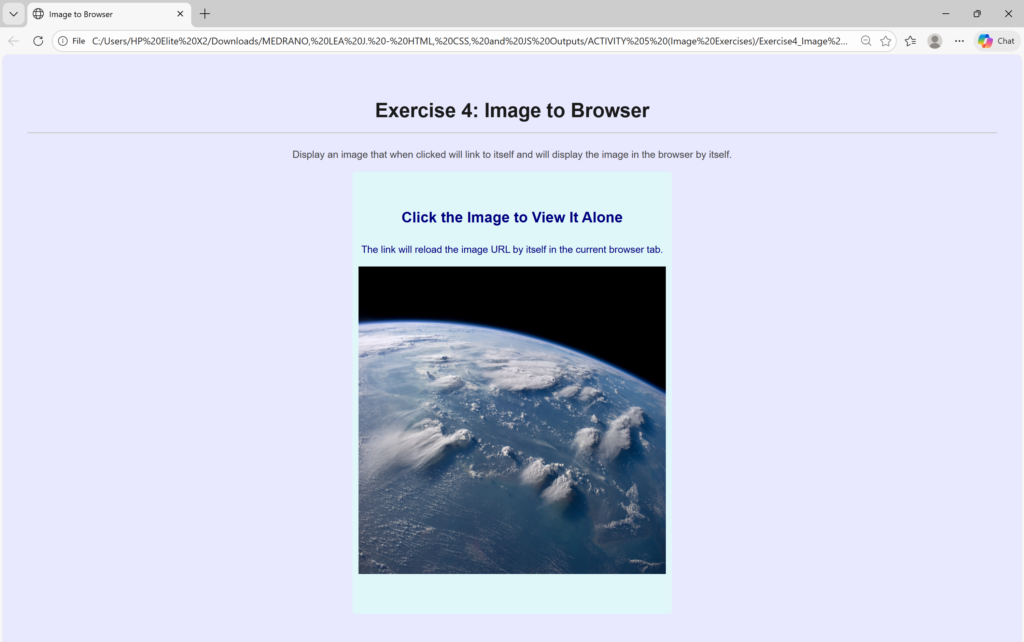
        <p> Display an image that when clicked will link to itself and will display the image in the browser by itself. </p> <!-- defines a paragraph of text -->

<div class="styled-text"><br>
    <h2>Click the Image to View It Alone</h2>
    <p>The link will reload the image URL by itself in the current browser tab.</p>

    <a href="https://upload.wikimedia.org/wikipedia/commons/thumb/1/1d/ISS-40_Thunderheads_near_Borneo.jpg/2560px-ISS-40_Thunderheads_near_Borneo.jpg"> <!-- defines the destination of the link. It specifies the URL or path to which the user will be taken when they click the content inside the <a> tags-->
        <!-- src attribute is the most crucial attribute for the img tag, it is mandatory for an image to appear-->
        <img src="https://upload.wikimedia.org/wikipedia/commons/thumb/1/1d/ISS-40_Thunderheads_near_Borneo.jpg/2560px-ISS-40_Thunderheads_near_Borneo.jpg"
             alt="Cloudscape over Borneo, taken by the International Space Station"
             title="Click to open the full image file"
             class="viewable-image"
             width="500"
             height="500" >
            <!--title attribute provides supplemental information about the element-->
             <!--alt attribute provides descriptive text for the image, it is mandatory for accessibility and highly recommended for good web practices-->
             <!--class attribute is a standard HTML attribute used for styling and scripting elements-->

    </a>
    </div>
</div>

    <script src="script.js"></script>
    </div>
</body>
</html>
/*
 * style.css
 * Styles for the basic HTML exercises.
 */

/* Global Reset/Box-sizing for consistency */
*, *::before, *::after {
    box-sizing: border-box;
}

body {
    font-family: Arial, sans-serif;
    line-height: 1.6;
    margin: 20px;
    padding: 20px;
    background-color: #e8e8ff; /* Light lavender background */
    color: #444;
}

/* --- Headings Styling --- */
h1 {
    color: #1a1a1a;
    border-bottom: 2px solid #ccc;
    padding-bottom: 10px;
    margin-top: 25px;
    /* Centering used for the Search Engine and Address exercises */
    text-align: center;
}

/* Paragraph Styling */
p {
    margin-bottom: 15px;
}

/* Specific styling for .styled-text */
.styled-text {
    color: navy;
    background-color: #e0f7fa; /* Light cyan background */
    padding: 10px;
    border-radius: 5px;
    display: inline-block;
}

/* --- STYLES FOR EMBEDDED CONTENT (IFRAMES) --- */

/* Ensures the iframe has a consistent border and margins */
iframe {
    /* Uses a fixed aspect ratio for visual consistency */
    display: block;
    width: 400px;
    height: 300px;
    border: 3px solid #007bff; /* Blue border to match previous image style */
    /* Removed margin from here, handled by .iframe-container */
}

/* --- STYLES FOR JAVASCRIPT TITLE DISPLAY --- */

/* Style for the dynamically added title */
.image-title-display {
    font-weight: bold;
    font-size: 1.1em;
    color: navy; /* A nice blue color */
    padding: 5px 0 15px 0;

    /* Make the transition smooth */
    transition: opacity 0.3s ease-in-out;

    /* Initial state set by JavaScript */
    opacity: 0;
}

/* Optional: Style the image on hover for a visual cue */
img {
    transition: transform 0.3s ease-in-out;
}

img:hover {
    transform: scale(1.01); /* Subtle zoom */
    box-shadow: 0 4px 8px rgba(0, 0, 0, 0.2);
}

/* --- STYLES FOR JUMP LINK EXERCISE --- */

/* Ensures the content blocks are large enough to require scrolling */
.content-block {
    margin-top: 50px;
    padding: 20px;
    border: 1px solid #ccc;
    height: 80vh; /* Set height to 80% of viewport height */
}

/* Styles the target area at the bottom of the page */
.bottom-marker {
    padding: 20px;
    font-size: 1.5em;
    text-align: center;
    background-color: #fffdda;
    margin-top: 50px;
    margin-bottom: 50px;
}


html {
    /* Applies a smooth animation when scrolling to anchor links */
    scroll-behavior: smooth;
}
/**
 * script.js
 * Enhances image viewing by creating a persistent title display that appears
 * below the image when the mouse hovers over it.
 */

document.addEventListener('DOMContentLoaded', function() {
    // 1. Select all the image elements you want to add this effect to.
    //    We use the tag name 'img' to select all images on the page.
    const images = document.querySelectorAll('img');

    images.forEach(image => {
        // 2. Get the title text from the 'title' attribute.
        //    We use getAttribute() to ensure we retrieve the explicit title set in HTML.
        const titleText = image.getAttribute('title');

        // Check if there is a title to display and if the element hasn't been processed yet
        if (titleText) {

            // 3. Create a new <div> element to hold and display the title.
            const titleDisplay = document.createElement('div');

            // Assign a class for CSS styling (create this class in style.css)
            titleDisplay.classList.add('image-title-display');

            // Clean up the text by removing the "Title: " prefix
            titleDisplay.textContent = titleText.replace('Title: ', '');

            // Start the element hidden
            titleDisplay.style.visibility = 'hidden';

            // 4. Insert the new title element directly after the image element.
            //    This places the title right below the image.
            image.parentNode.insertBefore(titleDisplay, image.nextSibling);


            // --- Event Listeners for Hover Effect ---

            // MOUSE ENTER: Show the title display
            image.addEventListener('mouseenter', function() {
                titleDisplay.style.visibility = 'visible';
                titleDisplay.style.opacity = '1'; // Use opacity for a fade-in effect (needs CSS transition)
            });

            // MOUSE LEAVE: Hide the title display
            image.addEventListener('mouseleave', function() {
                titleDisplay.style.visibility = 'hidden';
                titleDisplay.style.opacity = '0'; // Use opacity for a fade-out effect (needs CSS transition)
            });
        }
    });

    console.log("Script.js loaded. Custom title display attached to images.");
});